


Deep Block processes extremely large images by dividing them into smaller pixel windows that can be analyzed by a computer vision model.
The Image Division Configuration determines the size of the window that the AI model uses to scan your image.
Previously, image division was configured by specifying the number of rows and columns in a grid. Deep Block now allows users to define the width and height of each window directly in pixels.
This updated system makes it easier to apply the same AI model to images with different dimensions, Ground Sample Distance values, and spatial extents.
Watch how to configure pixel windows, train a change detection model, and run inference on large GeoTIFF images.
What Has Changed?
In the previous image division system, users specified how many rows and columns an image should be divided into.
For example, a configuration of 4 × 5 divided the entire image into four rows and five columns. As a result, the actual pixel size of each tile changed whenever the dimensions of the source image changed.
In the updated system, users specify the tile dimensions directly.
For example:
- Width: 800 pixels
- Height: 800 pixels
Deep Block then scans the image using 800 × 800-pixel windows, regardless of the total dimensions of the source image.
Previous system: Divide the whole image into 4 × 5 sections
Updated system: Process the image using 800 × 800-pixel windows
The new system provides more consistent inputs for AI models and makes image division easier to control across different datasets.
Understanding Pixel Windows
A pixel window is the portion of an image that the AI model processes at one time.
A larger window gives the model more surrounding context but requires more memory. It can also make small objects appear relatively smaller within the model input.
A smaller window can make small objects easier to inspect, but it creates more tiles and may increase the total processing time.
The ideal window size therefore depends on:
- The size of the objects you want to detect
- The GSD or spatial resolution of the image
- The image characteristics used during model training
- The available GPU memory
- The amount of surrounding context required by the model
For most workflows, the inference window should cover approximately the same real-world ground area as the window used during training.
Pixel Window Size and GSD
For ordinary images without geospatial information, you can select the window size based on the visible size of the target objects.
For GeoTIFF images, however, the same number of pixels may represent different ground areas depending on the GSD.
The approximate ground coverage of a window can be calculated as follows:
Ground coverage = Pixel window size × GSD
For example, consider a GeoTIFF with a GSD of 10 centimeters per pixel.
A 1,000 × 1,000-pixel window represents:
1,000 pixels × 0.10 meters per pixel = 100 meters
The model therefore sees an area of approximately 100 × 100 meters in each training window.
Using Images with the Same GSD
In the example shown in this tutorial, both the training images and inference images have a GSD of 25 centimeters.
The same 800 × 800-pixel window can therefore be used during both training and inference.
An 800-pixel window at a GSD of 25 centimeters covers approximately:
800 pixels × 0.25 meters per pixel = 200 meters
Each window represents a ground area of approximately 200 × 200 meters.
Both training and inference use an 800 × 800-pixel window because the images have the same 25-centimeter GSD.
Using Different GSD Values for Training and Inference
The training and inference images do not need to have the same GSD.
However, the inference window should ideally cover approximately the same ground area as the training window.
Suppose that a model was trained using:
- Training GSD: 10 centimeters
- Training window: 1,000 × 1,000 pixels
- Ground coverage: approximately 100 × 100 meters
If the inference image has a GSD of 5 centimeters, more pixels are required to cover the same ground area.
The appropriate inference window would be:
The recommended inference window is therefore approximately 2,000 × 2,000 pixels.
| Stage | GSD | Pixel Window | Ground Coverage |
|---|---|---|---|
| Training | 10 cm | 1,000 × 1,000 px | 100 × 100 m |
| Inference | 5 cm | 2,000 × 2,000 px | 100 × 100 m |
The training and inference settings do not need to match perfectly. A moderate difference in ground coverage may still produce usable results.
Deep Block is also being optimized to reduce the amount of manual configuration required for datasets with different GSD values.
Change Detection with Two Different GSD Values
The two images used for change detection may also have different GSD values.
When this occurs, Deep Block uses the image with the smaller GSD value—the higher-resolution image—as the reference for tile generation.
Deep Block then:
- Creates a tile from the higher-resolution image.
- Finds the corresponding coordinate area in the lower-resolution image.
- Extracts the matching area from the lower-resolution image.
- Resizes it to the same pixel dimensions as the higher-resolution tile.
- Sends the aligned image pair to the change detection model.
This allows the model to compare approximately the same geographic area even when the two source images have different spatial resolutions.
The lower-resolution area is matched by geographic coordinates and resized to the dimensions of the higher-resolution tile.
Change Detection with Different Spatial Extents
The two GeoTIFF images do not need to have identical image dimensions or spatial extents.
Deep Block uses their geospatial information to identify corresponding geographic areas.
When the images cover different extents, change detection is performed on the areas that can be geographically matched between the two images.
For reliable alignment, the uploaded GeoTIFF files should contain valid coordinate reference and georeferencing information.
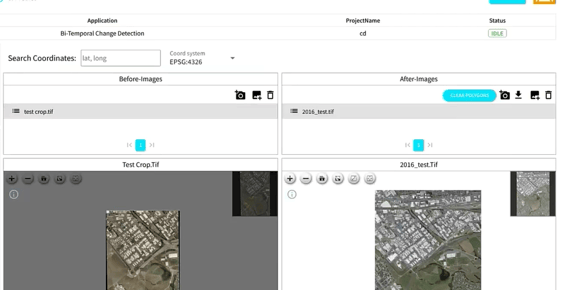
Although the source images have different spatial extents, their corresponding geographic areas can still be aligned for change detection.
Step 1 — Configure the Training Window
Open the Image Division Configuration for the training dataset.
Enter the desired pixel width and height.
In this example, both values are set to 800 pixels.
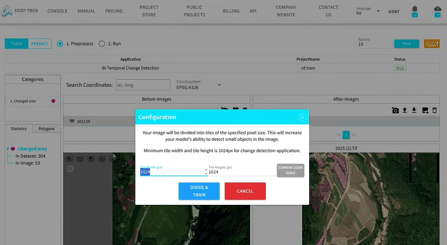
Recommended callouts:
- Pixel width
- Pixel height
- DIVIDE & TRAIN button
Click DIVIDE & TRAIN to divide the training images and begin model training.
Depending on the amount of training data, the number of epochs, the window configuration, and the available hardware, training may take from several minutes to several hours.
Step 2 — Wait for Model Training to Finish
Deep Block automatically creates the image windows and uses them to train the selected computer vision model.
You can monitor the model training status from the project interface.
Once training is complete, switch to the inference or prediction workflow.
Step 3 — Configure the Inference Window
Upload the images that you want to analyze.
Open the Image Division Configuration and enter the pixel window size for inference.
When the inference images have the same GSD as the training images, you can normally begin with the same pixel window dimensions.
When the GSD values differ, adjust the inference window so that it covers approximately the same real-world area as the training window.
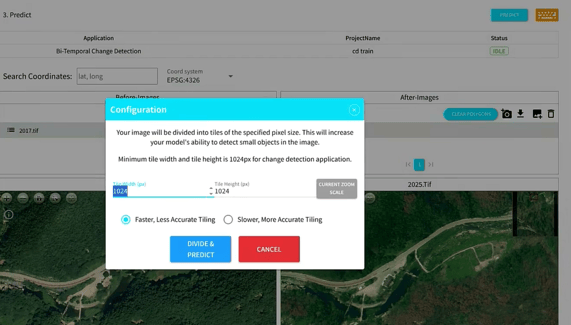
Click DIVIDE & PREDICT to divide the uploaded images and begin inference.
Step 4 — Review the Inference Results
Inference may take from a few seconds to several minutes depending on:
- The dimensions of the source images
- The selected pixel window size
- The number of generated tiles
- The AI model
- The available hardware
Once processing is complete, the prediction results will appear in the image viewer.
You can zoom in to inspect individual predictions across the entire image.
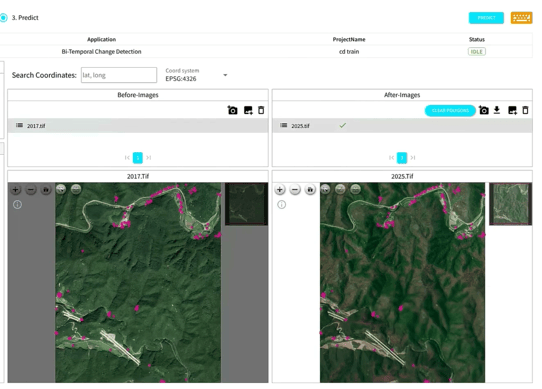
Possible examples include:
- Newly constructed buildings
- Demolished buildings
- New roads
- Vegetation removal
- Changes from vegetation or undeveloped land to paved surfaces
- Other visible surface changes represented in the training data
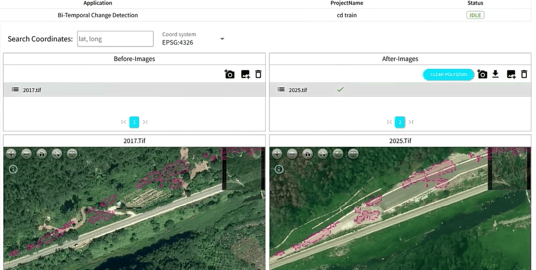
The behavior of the model depends on the quality, quantity, and variety of the training dataset.
Recommended Configuration Guidelines
Use the following guidelines when selecting a pixel window:
Start with the training configuration
When possible, use the same pixel window dimensions that were used during training.
Match ground coverage for GeoTIFFs
When training and inference GSD values differ, adjust the pixel dimensions so that the windows cover a similar real-world area.
Avoid unnecessarily large windows
Very large windows require more GPU memory and may make small target objects occupy too little of the model input.
Avoid unnecessarily small windows
Very small windows generate more image pieces, increase processing overhead, and may remove useful surrounding context.
Verify the result visually
Run inference on a representative section of your dataset and inspect the results before processing a large collection of images.
Summary
Deep Block now divides large images using user-defined pixel windows instead of row-and-column grid counts.
This provides more consistent control over the image regions processed by the AI model and makes it easier to work with:
- Images with different dimensions
- GeoTIFFs with different GSD values
- Images with different spatial extents
- Large aerial, satellite, drone, and other high-resolution images
For GeoTIFF workflows, the most important principle is to keep the real-world ground coverage of the training and inference windows reasonably similar.
Use Deep Block to train and deploy your own computer vision models and automate large-scale image analysis and GIS workflows.
Visit DeepBlock.net to learn more.